> ## Documentation Index
> Fetch the complete documentation index at: https://docs.qwacks.com/llms.txt
> Use this file to discover all available pages before exploring further.
# Unity SDK
> Add Flock to your Unity game with the official C# SDK.
The Flock Unity SDK connects your game to the Flock backend: player auth, save data, economy,
remote config, downloadable assets, and analytics — configured from one in-editor window, with
strongly typed C# generated from your own schemas.
Get the latest `.unitypackage` from the releases page.
## Requirements
* Unity **2020.3** or newer
* `com.unity.nuget.newtonsoft-json` **3.0.2+**
## Setup
Download the latest [release](https://github.com/QwackStack/FlockUnitySdk/releases) and import the
`.unitypackage` (**Assets → Import Package → Custom Package**).
Add Newtonsoft JSON to `Packages/manifest.json`:
```json theme={null}
{ "dependencies": { "com.unity.nuget.newtonsoft-json": "3.0.2" } }
```
Open **Qwacks → Flock** and fill in the four fields from your game's page on the
[dashboard](https://flock-saas.qwacks.com):
| Field | Value |
| ---------------- | ------------------------------------------------------------------------ |
| **API URL** | Leave the default (`https://api-flock.qwacks.com`) unless told otherwise |
| **API Key** | Identifies your game — treat it like a password |
| **Game ID** | Your game's unique ID |
| **Game Version** | A version name that exists on the dashboard (e.g. `v1.0.0`) |
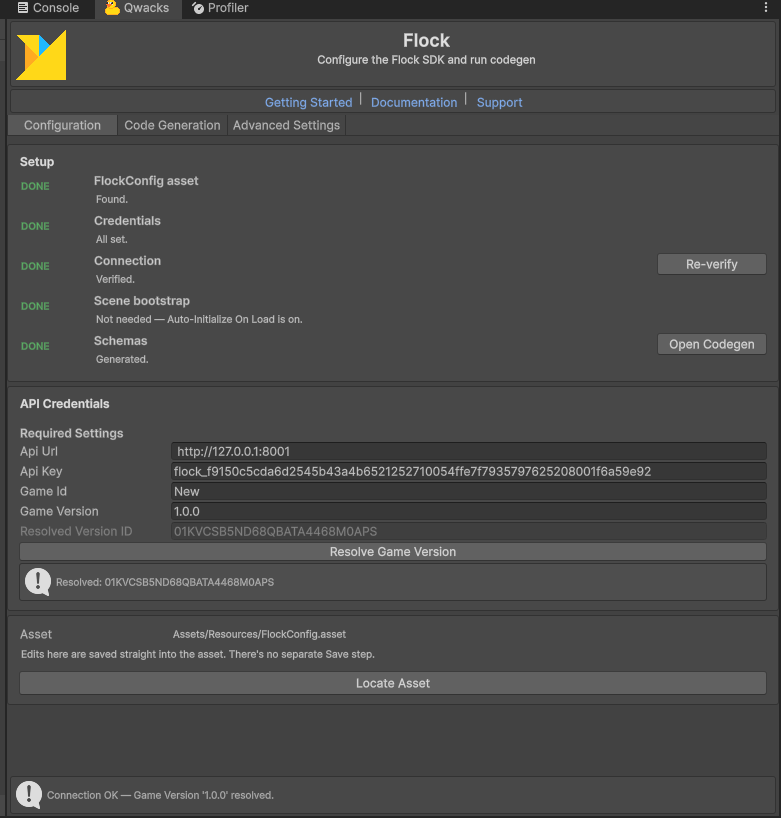
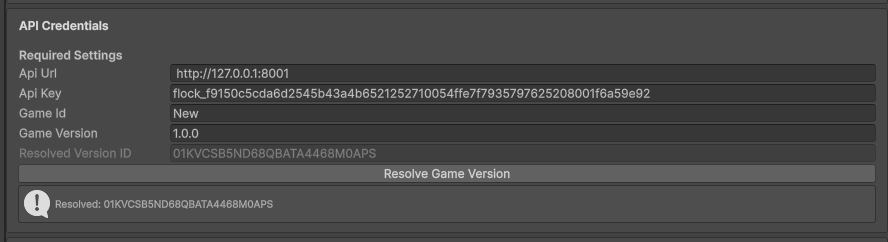 Values are saved to `Assets/Resources/FlockConfig.asset`. As you fill them in, the window prepares
the two things the SDK needs before it can start:
* **Resolve Game Version** — your version name is looked up and its **ID is baked into the
config**. Runtime init uses that baked ID directly and never calls the server, so it must
resolve before you play or build. The window resolves it automatically when your credentials
change (or click **Resolve Game Version**).
* **Verify** — the Setup checklist's **Verify** button confirms your credentials actually reach
Flock.
Green checks across the **Setup** checklist mean you're ready to initialize.
Values are saved to `Assets/Resources/FlockConfig.asset`. As you fill them in, the window prepares
the two things the SDK needs before it can start:
* **Resolve Game Version** — your version name is looked up and its **ID is baked into the
config**. Runtime init uses that baked ID directly and never calls the server, so it must
resolve before you play or build. The window resolves it automatically when your credentials
change (or click **Resolve Game Version**).
* **Verify** — the Setup checklist's **Verify** button confirms your credentials actually reach
Flock.
Green checks across the **Setup** checklist mean you're ready to initialize.
 The API Key ships inside your build (it's loaded from `Resources` at runtime). Use a key scoped to
the right environment, and rotate it on the dashboard if it leaks.
## Your first call
With auto-init on, the SDK is already running — just use `FlockClient.Instance`.
```csharp theme={null}
using Flock;
// 1. Sign a player in. Auth methods throw on failure.
await FlockClient.Instance.Authentication.LoginWithDeviceAsync("device-uuid");
// 2. Call any service through the singleton.
var game = await FlockClient.Instance.Game.GetGameAsync();
Debug.Log($"Signed in as {FlockClient.Instance.CurrentPlayerId}, playing {game.Name}");
```
## Initialization
The SDK can start three ways. **Automatic** is the default and fits most games; the other two trade
a little setup for control over *when* init runs (after a splash screen, EULA, etc.).
Nothing to call — the SDK initializes from `FlockConfig.asset` before the first scene loads and
restores a saved session in the background. React to lifecycle events if you need to:
```csharp theme={null}
FlockEvents.OnInitialized += () => Debug.Log("Flock ready");
FlockEvents.OnSessionRestored += signedIn => Debug.Log(signedIn ? "Resumed" : "Show login");
```
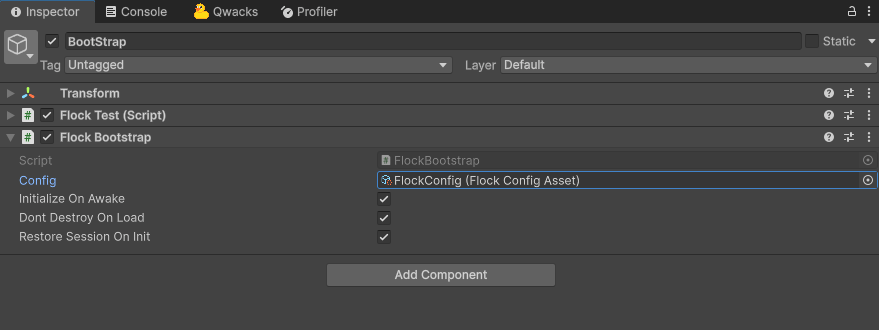
Turn off **Auto-Initialize On Load**, then click **Add to Scene** in the Flock window (or add a
`FlockBootstrap` component yourself). It reads your config asset and initializes in `Awake`. Put
it in a boot scene with **Don't Destroy On Load** on.
The API Key ships inside your build (it's loaded from `Resources` at runtime). Use a key scoped to
the right environment, and rotate it on the dashboard if it leaks.
## Your first call
With auto-init on, the SDK is already running — just use `FlockClient.Instance`.
```csharp theme={null}
using Flock;
// 1. Sign a player in. Auth methods throw on failure.
await FlockClient.Instance.Authentication.LoginWithDeviceAsync("device-uuid");
// 2. Call any service through the singleton.
var game = await FlockClient.Instance.Game.GetGameAsync();
Debug.Log($"Signed in as {FlockClient.Instance.CurrentPlayerId}, playing {game.Name}");
```
## Initialization
The SDK can start three ways. **Automatic** is the default and fits most games; the other two trade
a little setup for control over *when* init runs (after a splash screen, EULA, etc.).
Nothing to call — the SDK initializes from `FlockConfig.asset` before the first scene loads and
restores a saved session in the background. React to lifecycle events if you need to:
```csharp theme={null}
FlockEvents.OnInitialized += () => Debug.Log("Flock ready");
FlockEvents.OnSessionRestored += signedIn => Debug.Log(signedIn ? "Resumed" : "Show login");
```
Turn off **Auto-Initialize On Load**, then click **Add to Scene** in the Flock window (or add a
`FlockBootstrap` component yourself). It reads your config asset and initializes in `Awake`. Put
it in a boot scene with **Don't Destroy On Load** on.
 Turn off **Auto-Initialize On Load** and create the client yourself — e.g. after a splash screen
or EULA. `Create` is synchronous and makes no network call.
```csharp theme={null}
var config = Resources.Load("FlockConfig");
FlockClient.Create(config.ToInitConfig());
// Manual init does NOT resume a saved session — do it yourself if you persist sessions:
bool signedIn = await FlockClient.Instance.Authentication.TryRestoreSessionAsync();
```
Init is fail-fast. A bad config throws (the auto-init path logs instead of crashing), and
`FlockClient.Instance` throws until init succeeds. Guard with `FlockClient.IsInitialized`, inspect
`FlockClient.InitializationError`, or handle `FlockEvents.OnInitializationFailed`.
## Authenticate a player
The first sign-in registers the player automatically — there's no separate sign-up step. Auth
methods **throw** on failure, so wrap them in `try/catch`.
```csharp theme={null}
await FlockClient.Instance.Authentication.LoginWithDeviceAsync("device-uuid");
```
```csharp theme={null}
await FlockClient.Instance.Authentication.LoginWithEmailAsync(email, password);
```
Pass the token or ticket from the platform to the matching `LoginWith…Async` method.
Sessions refresh automatically. Subscribe to `FlockEvents.OnAuthenticated` and `OnAuthExpired` to
drive your UI.
## Work with your game data
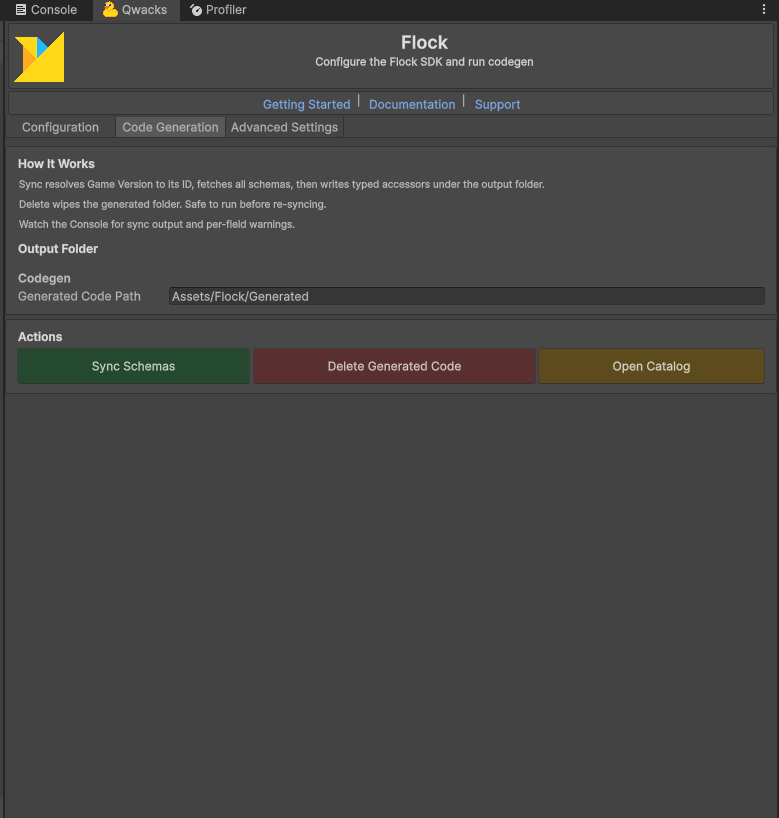
Run **Code Generation → Sync Schemas** in the Flock window to turn your dashboard's player
templates, configs, and shops into typed C# accessors under `Assets/Flock/Generated/`.
Turn off **Auto-Initialize On Load** and create the client yourself — e.g. after a splash screen
or EULA. `Create` is synchronous and makes no network call.
```csharp theme={null}
var config = Resources.Load("FlockConfig");
FlockClient.Create(config.ToInitConfig());
// Manual init does NOT resume a saved session — do it yourself if you persist sessions:
bool signedIn = await FlockClient.Instance.Authentication.TryRestoreSessionAsync();
```
Init is fail-fast. A bad config throws (the auto-init path logs instead of crashing), and
`FlockClient.Instance` throws until init succeeds. Guard with `FlockClient.IsInitialized`, inspect
`FlockClient.InitializationError`, or handle `FlockEvents.OnInitializationFailed`.
## Authenticate a player
The first sign-in registers the player automatically — there's no separate sign-up step. Auth
methods **throw** on failure, so wrap them in `try/catch`.
```csharp theme={null}
await FlockClient.Instance.Authentication.LoginWithDeviceAsync("device-uuid");
```
```csharp theme={null}
await FlockClient.Instance.Authentication.LoginWithEmailAsync(email, password);
```
Pass the token or ticket from the platform to the matching `LoginWith…Async` method.
Sessions refresh automatically. Subscribe to `FlockEvents.OnAuthenticated` and `OnAuthExpired` to
drive your UI.
## Work with your game data
Run **Code Generation → Sync Schemas** in the Flock window to turn your dashboard's player
templates, configs, and shops into typed C# accessors under `Assets/Flock/Generated/`.
 ```csharp theme={null}
// Player data — typed accessor generated from your "PlayerProgress" template.
var progress = await FlockClient.Instance.Player.GetPlayerProgressAsync();
progress.Level = 5;
await progress.UpdateAsync();
// Remote config — change values on the dashboard without rebuilding.
var gameplay = await FlockClient.Instance.Config.GetGameplayAsync();
float speed = gameplay.BaseMoveSpeed;
// Shop — enum-keyed purchase; the SDK resolves ids for you.
await FlockClient.Instance.Shop.PurchaseAsync(FlockShopItemId.GemPack);
```
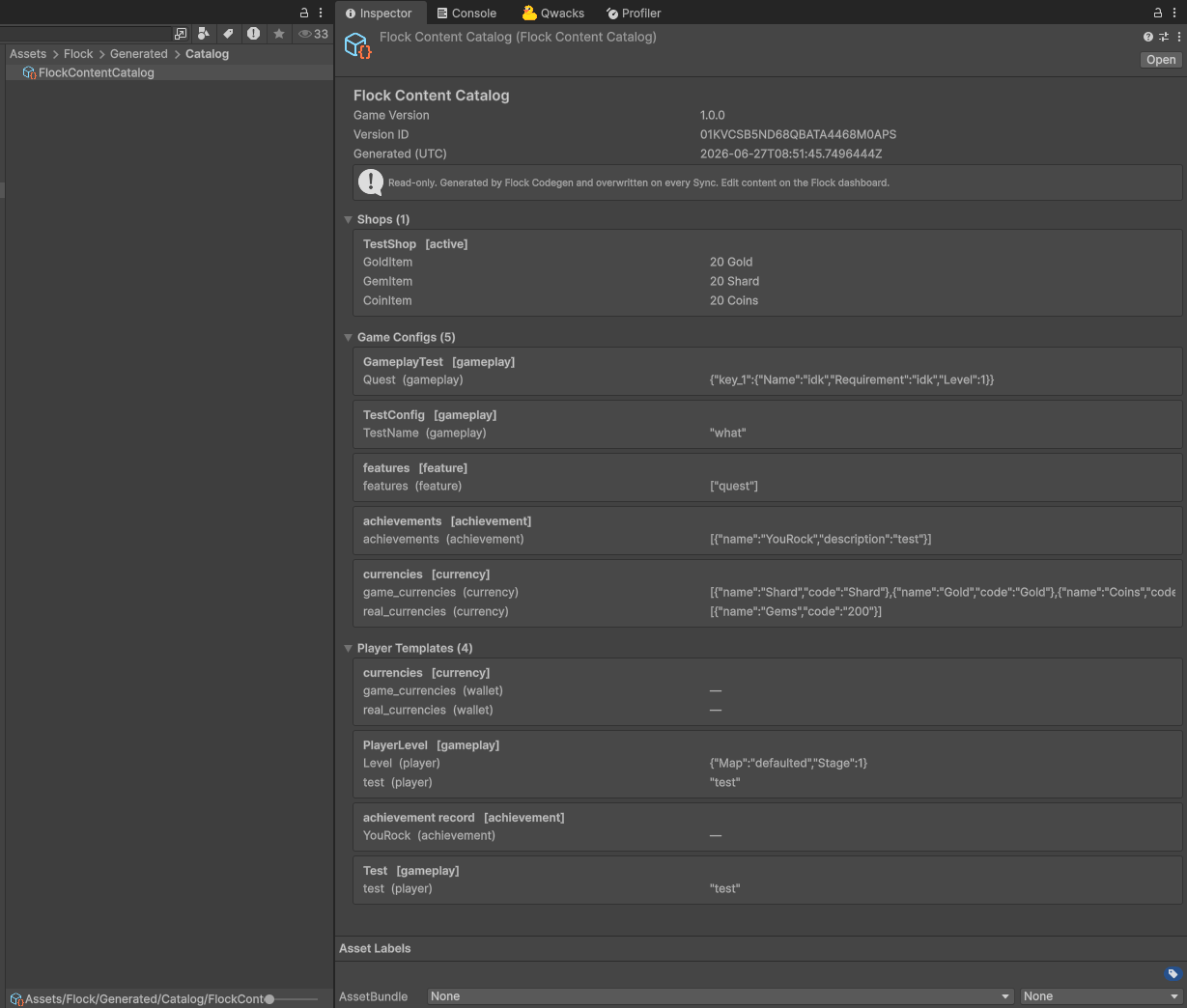
Each sync also writes a read-only **FlockContentCatalog** asset — designers can browse every shop,
config, and template in the Inspector without touching code or the dashboard.
```csharp theme={null}
// Player data — typed accessor generated from your "PlayerProgress" template.
var progress = await FlockClient.Instance.Player.GetPlayerProgressAsync();
progress.Level = 5;
await progress.UpdateAsync();
// Remote config — change values on the dashboard without rebuilding.
var gameplay = await FlockClient.Instance.Config.GetGameplayAsync();
float speed = gameplay.BaseMoveSpeed;
// Shop — enum-keyed purchase; the SDK resolves ids for you.
await FlockClient.Instance.Shop.PurchaseAsync(FlockShopItemId.GemPack);
```
Each sync also writes a read-only **FlockContentCatalog** asset — designers can browse every shop,
config, and template in the Inspector without touching code or the dashboard.
 ## Explore features
## Advanced settings
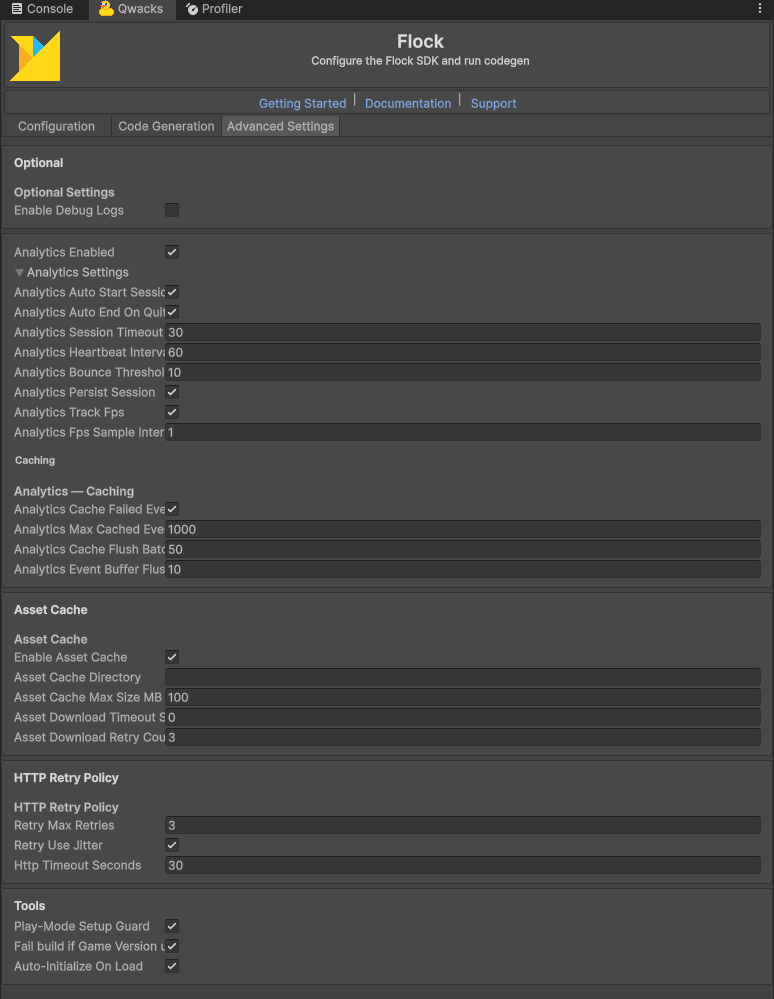
The **Advanced Settings** tab tunes analytics, HTTP retries, the asset and offline caches, and
editor tools (including **Auto-Initialize On Load**). The defaults are sensible — change them only
when you need to.
## Explore features
## Advanced settings
The **Advanced Settings** tab tunes analytics, HTTP retries, the asset and offline caches, and
editor tools (including **Auto-Initialize On Load**). The defaults are sensible — change them only
when you need to.
 ## Error handling
Every SDK failure raises `FlockException` with a readable `Message`, a `Code` for coded backend
errors, and a `StatusCode` where applicable.
```csharp theme={null}
try
{
await FlockClient.Instance.Authentication.LoginWithEmailAsync(email, password);
}
catch (FlockException ex)
{
Debug.LogError($"Sign-in failed: {ex.Message}");
}
```
The full API reference, codegen details, offline cache, and analytics tuning live in the
[SDK README](https://github.com/QwackStack/FlockUnitySdk#readme).
## Error handling
Every SDK failure raises `FlockException` with a readable `Message`, a `Code` for coded backend
errors, and a `StatusCode` where applicable.
```csharp theme={null}
try
{
await FlockClient.Instance.Authentication.LoginWithEmailAsync(email, password);
}
catch (FlockException ex)
{
Debug.LogError($"Sign-in failed: {ex.Message}");
}
```
The full API reference, codegen details, offline cache, and analytics tuning live in the
[SDK README](https://github.com/QwackStack/FlockUnitySdk#readme).