
 Qwacks
 Flock
Flock Protokite
 Data Duck
TurnedOff.
Only three work without one: a test video, the player’s consent answer, and the Steam ID, which is kept for
the session to come. Setting the build up is on the Unity package page.
What the player allowed
The build asks its player what this playtest may collect before it collects anything, and their answer decides what the rest of this page does:ProtokitePlaytest.IsFeatureEnabled already answers for both at once: a feature the playtest turns on and
the player left out reads as off, everywhere. Exception capturing follows play data there, but
exceptions themselves are the Flock SDK’s, reported with its own setting whatever the player
answered.
The feedback form is not covered by that answer. It is sent only when a player fills it in and presses
Send, which is their own doing either way — and a form an earlier launch could not send is still sent
later, whatever they answered since.
Video recording
The game’s screen is recorded from the moment the playtest loads and the player has allowed it, before anyone signs in: one recording per launch, written as it records into a WebM file a browser plays with nothing installed. Time the game spends in the background is left out. The settings are in Protokite → Playtest → Settings, under Video recording (64-bit Windows):
The frame is copied, scaled and converted on the graphics card and read back without waiting for it;
encoding and writing each run on a thread of their own, and a frame that cannot keep up is dropped rather
than stalling the game. When a recording ends, the Console says what it holds and how many frames were
dropped, and why.
When a recording is uploaded
A recording is uploaded to its session once its file is finished and the session has started, whichever comes second. A file is finished when:- it reaches Max Recording Minutes or Max Recording Size Mb;
- the player presses Upload your recording on the feedback form, or your game calls
ProtokitePlaytest.StopRecordingAndSendIt(); - your game stops it for good with
ProtokitePlaytest.StopVideoRecording().
Quitting does not upload. A whole recording cannot be sent while the game closes, so a recording still
going at quit is finished and kept, and the next launch sends it. A later launch sends every recording an
earlier one kept — a failed upload, a quit, a crash — oldest first, even with Playtesting Enabled off, so a
release build never strands what a playtest build recorded. A recording no session ever started for is
deleted, since it can never be sent.
ProtokitePlaytest.CanSendTheRecording is true. It is false
when no session has started for the recording, and a button pressed then would stop the recording and send
nothing:
Room on the player’s disk
Recordings Disk Budget Mb is the most every recording kept on the machine may take together. Before a recording starts, recordings earlier launches left are deleted until it fits: test videos first, then recordings waiting to upload, the oldest first. One being uploaded, or still held by a copy of the game that is running, is never deleted. A recording makes room only for what its length limit records at its bitrate, with a quarter to spare (about 845 MB at the defaults), so a short recording never deletes one it would fit beside. With less than 1 MB left, that launch records no video, and a warning names the setting to raise. A recording cut off by a crash, a power cut or a killed game is finished by the next launch with every whole frame it holds, then uploaded to its session like any other; one whose session never started is deleted.Heavy analytics
The playtest sends these through the Flock SDK’s analytics, under theplaytest category, and they read on
Dashboards → Game Metrics:
performance_window, for every ten seconds of play: the median, 95th and 99th percentile frame time,hitches(frames that took Hitch Frame Time Ms, 60 by default, or longer), memory used and at its peak, andmap, the active scene. A frame time is the real time from one frame to the next, so slow motion or a paused game is measured as the frames the player saw.level_loaded, for every scene the game loads in place of the one before, with the scene before it andload_seconds, how long the load held the game up.- Your own events, on the same timeline and in the same category:
RecordPlaytestEvent answers true when the event was queued, can be called from any thread, and sends only
while heavy analytics runs, which starts once the playtest has loaded; an event recorded earlier in the launch
answers false and is not kept. The two names the playtest sends itself are refused.
Heavy analytics needs the Flock SDK’s Analytics Enabled: with it off, nothing is measured and the Console
says so once. The events are Flock events like any other, so they wait for a signed-in player and follow the
Flock SDK’s own analytics consent. See Analytics & events for how the category
and the dashboards fit together.
Exceptions
Exceptions stay the Flock SDK’s. It captures the game’s exceptions from every thread, and faulted tasks nobody awaited, with Analytics Capture Exceptions in Flock → Settings → Advanced Settings (on by default), and reports them on Diagnostics → Errors. A playtest’s exception switch never turns that on or off. The same exception thrown again and again reaches the dashboard as one report, then one repeat report counting the others once the repeat window (Analytics Exception Repeat Window, 60 seconds) closes.Debug.LogError
lines are not exceptions and are not reported.
The feedback form
When the playtest publishes a feedback form in Protokite, the player opens it over the game with F9 and fills it in. It is built from what you published — every question, label, help text and option — so editing the form in Protokite needs no new build.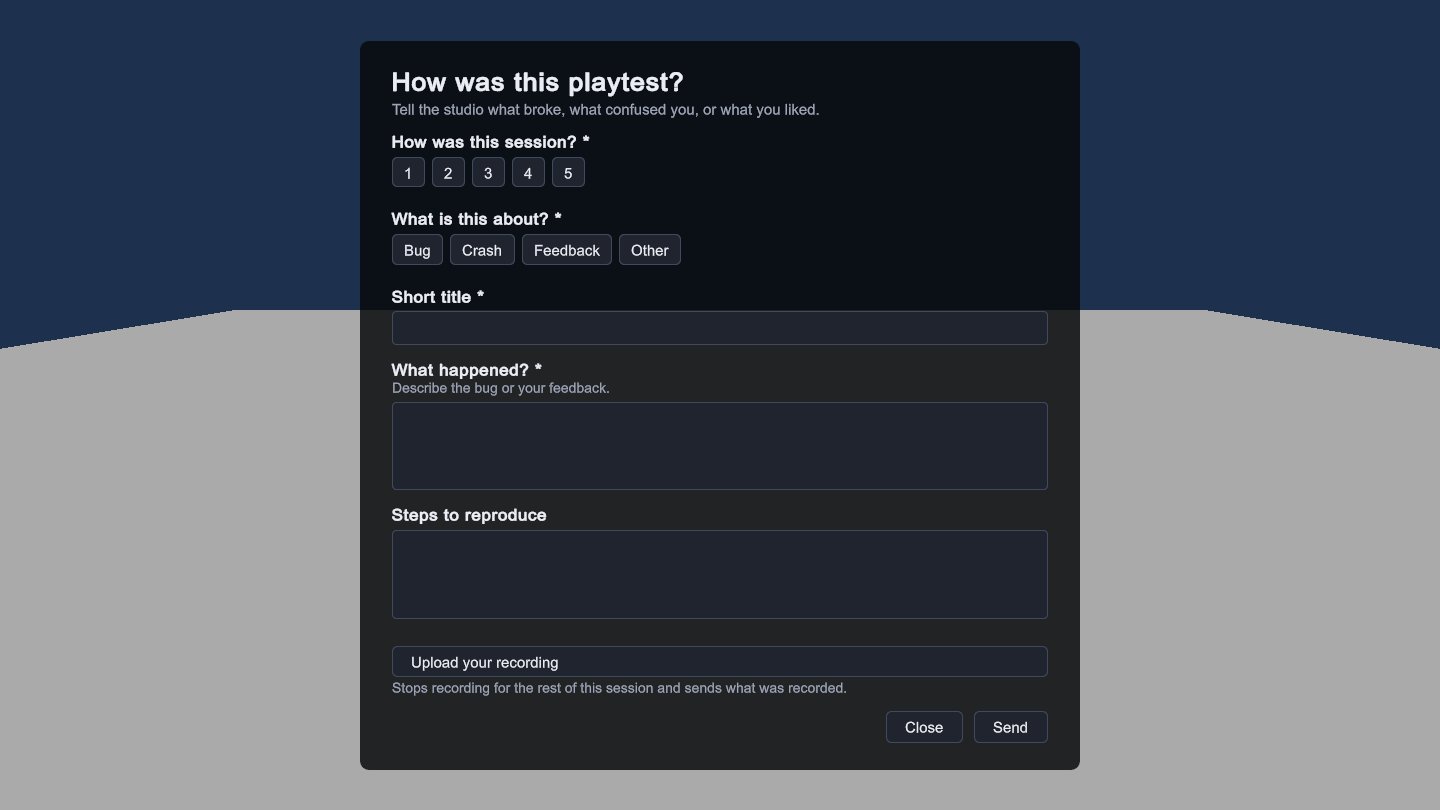
A published form, drawn from the playtest: every question, and the button that sends the recording.
- Send checks the answers the way Protokite does, and shows every problem against its question before anything is sent: a required question left empty, a rating out of range, an option the question does not offer.
- A sent form is kept on the device first and sent from there, so neither a closed game nor a lost network loses it: one that could not go now is sent when the network comes back, two minutes later, or by a later launch. Sending again in the same session replaces the earlier answers.
- Closing it without sending keeps what was typed for the rest of the launch.
- Upload your recording appears while this launch records the screen and its session has started: it stops the recording and sends it now. Opening the form never stops the recording on its own.
A form of your own
ProtokitePlaytest.FeedbackForm hands your UI the questions: each field’s Id, Type, Label, HelpText,
Options and whether it is Required. Answer them, check them and send them through the same checking and
keeping as the built-in form:
Type with the ProtokitePlaytestFormFieldTypes constants rather than typing it, and treat a
type you do not know as text, which is how the server reads it.
Calls your game can make
All onProtokitePlaytest, in the Protokite.Playtest namespace. Call them from the main thread;
RecordPlaytestEvent also works from any other.
The package’s sample,
Samples/PlaytestSample/ProtokitePlaytestSample.cs, puts every one of these on one
screen: add it to a GameObject and press Play.
Trying it in the editor
The setup window, Protokite → Playtest → Setup Checks And Test Video, has everything for testing in its lower half. In Play Mode it looks like this: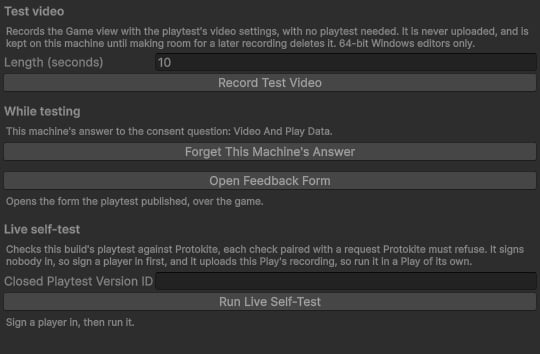
The setup window in Play Mode: the checks, this machine's answer, a test video and the live self-test.
- Forget This Machine’s Answer makes the next Play ask the consent question again.
- Open Feedback Form opens the form the way its key does.
- Record Test Video records the Game view for the seconds you set, with the video settings and no
playtest needed: playtesting off and nobody signed in is fine. A test video is saved under
ProtokitePlaytest/Recordings/TestVideos/in the game’s persistent data folder, never uploaded, and the window shows where it went. It is refused while the playtest’s own recording runs, and gives way to it. Like all video, it records on 64-bit Windows only. - Run Live Self-Test checks the whole playtest against your real Protokite (below).
Checking a playtest build
The live self-test checks everything a playtest build does against your real Protokite in one go, and logs a line per step and a count at the end. Run it in Play Mode with Run Live Self-Test, or from code in the editor or a development build (a release build refuses it):- Sign a player in first, and answer the consent question. It signs nobody in; steps that need a session or an answer are skipped, saying why.
- Run it in a Play or launch of its own. It stops this launch’s recording to upload it, sends a filled-in form that replaces one the player sent this launch, and raises two exceptions on purpose — so with Error Pause on in the Console, Play pauses there until you resume it.
- It leaves a trace on your dashboards: one filled-in form on the session, one
playtest_self_testevent, one exception raised twice so its repeat is counted, and the launch’s recording. Each carries the run’s id (report.RunId), so you can find them in Flock and Protokite. - A step is skipped, saying why, when the playtest does not turn its feature on, when the build has no video
encoder (every platform but 64-bit Windows), and for a closed playtest unless you name one: pass a closed
playtest’s Game Version ID to
RunAsync, or type it into Closed Playtest Version ID in the window.
What stays on the player’s machine
UnderProtokitePlaytest/ in the game’s persistent data folder (Application.persistentDataPath):
Platforms
Everything on this page runs wherever the Flock SDK runs, except video. Video is recorded on 64-bit Windows only, in the editor and in players, Mono and IL2CPP alike. It runs on Direct3D 11 and 12, Vulkan and OpenGL, in the Built-in Render Pipeline and URP, in Linear and Gamma colour, and needs a graphics card that runs compute shaders. “No video on this platform” means exactly that and nothing more: a build for any other platform — macOS, Linux, mobile, WebGL, or 32-bit or ARM64 Windows — leaves the video encoder out, says once in the Console that it records no video, and runs everything else: the session, the consent question, heavy analytics, exceptions and the feedback form. The setup window tells you in advance: “Players built for … record no video”. A game that draws nothing (a server build, or one started with-nographics or -batchmode) records nothing
either, and cannot show the consent question: answer it from code with SetPlaytestConsent, or turn asking
off.
On WebGL the playtest’s files — the consent answer, the device ID and feedback forms waiting to be sent — are
copied to the browser’s storage after every change, so they are there on the player’s next visit wherever the
browser keeps the site’s data. A private window forgets them when it closes.