
 Qwacks
 Flock
Flock Protokite
 Data Duck
Download the plugin
FlockPlaytest-<version>.zip ships beside the Flock SDK’s own zip, in the same release and at the
same version.Unreal only for now. The playtest plugin ships for Unreal Engine; it runs on top of the Flock
Unreal SDK and sends that SDK’s API key.
What a playtest collects
Every one of them is switched on the playtest’s page in Protokite, so changing what a playtest
collects needs no new build — and the player is asked first, so a launch collects only what they
allowed. See What the player is asked.
Before you start
- The Flock SDK is set up and working in the project — API URL, API Key, Game Name and Game Version, with the Flock panel showing nothing to fix. See the Unreal SDK page.
- A playtest exists in Protokite. Creating one makes a Flock game version for it, named
pt-followed by the test’s ID. - Playtest builds are Development builds. A Shipping build compiles logging out, so the Flock SDK cannot report error lines or failed ensures from it.
- Video is recorded on 64-bit Windows only. Every other platform runs the rest of the playtest and logs once that it records no video.
Install the plugin
1
Extract it into your project
Put it in your project’s
Plugins/ folder, so Plugins/FlockPlaytest/ sits beside
Plugins/FlockUnrealSdk/.2
Enable it
Turn on Flock Playtest under Edit → Plugins → Online Platform, and restart the editor so
it builds.
Point the build at the playtest
Protokite finds the playtest from the Flock game version the build sends.1
Read the playtest's version
Open the test in Protokite. Its SDK block shows the playtest’s Flock version ID.
2
Set Game Version to that version's name
In Project Settings → Plugins → Flock SDK Settings, set Game Version to
pt- followed by
the test’s ID, for example pt-01JABCDEFGHJKMNPQRSTVWXYZ0. The Flock SDK resolves that name to the ID
Protokite showed you.3
Turn playtesting on
In Project Settings → Plugins → Flock Playtest Settings, set Protokite API URL and turn on
Enable Playtesting. The URL must start with
http:// or https:// and contain no spaces; one that does
not is refused rather than tidied up.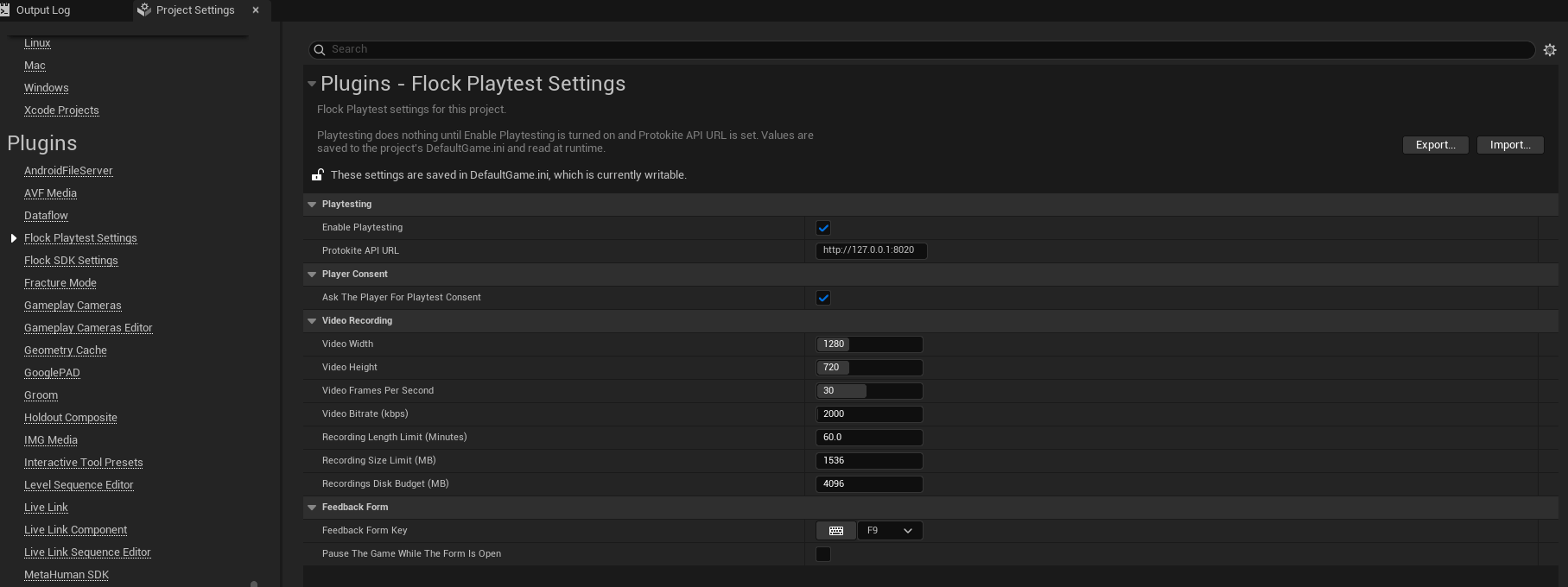
Project Settings → Plugins → Flock Playtest Settings: the switch, the Protokite URL, the question put to the player, and the recording limits.
What the player is asked
A playtest build asks its player what it may collect, and collects nothing until they answer. The question is drawn over the game as soon as this build’s playtest loads, and offers four answers: record the screen and collect play data, the screen only, play data only, or nothing at all — which leaves the build behaving exactly as one with Enable Playtesting off.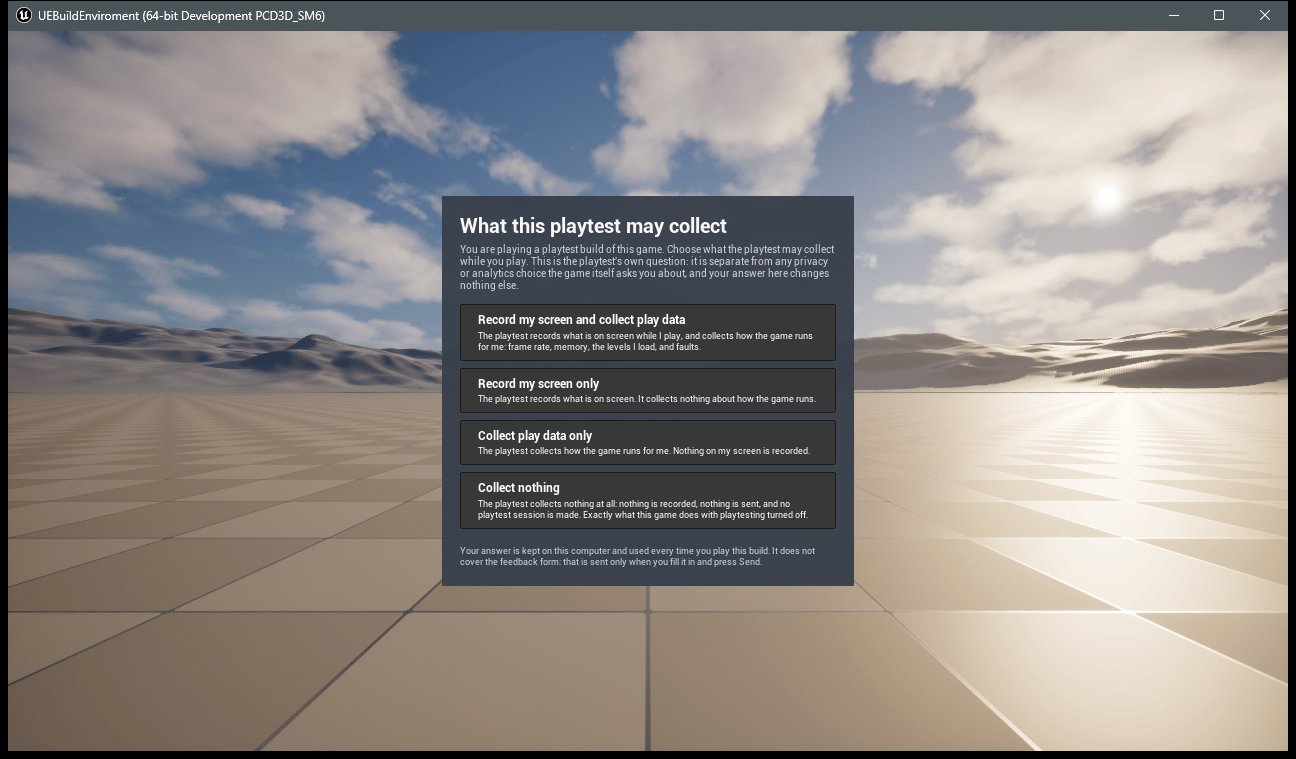
The question a playtest build puts to its player, over the game, before it collects anything.
It is the playtest’s own question. The Flock SDK’s Analytics Require Explicit Consent is a
different one, asked by your game in your game’s words about your game’s analytics. Neither answer
moves the other, and the question says so in front of the player.
playtest_consent and playtest_consent_asked, so a session with no recording reads as a player who
asked for none rather than a build that went wrong.
Your game can take the question over: Flock Get Playtest Consent reads the answer, Flock Set
Playtest Consent records one from your own screens, and Flock Ask For Playtest Consent puts the
question again — what a “change what this playtest collects” entry in a menu calls.
Turn Ask The Player For Playtest Consent off in Flock Playtest Settings only where your players
are asked another way, for an internal test on your own machines, or for an automated run with nobody
there to answer; the build then collects what the playtest turns on, and every session says the player
was never asked. An answer a player has already given is still honoured.
Sign a player in
A playtest never signs a player in. The playtest session starts from the Flock session, and a Flock session starts once your game signs a player in, with Analytics Enabled and Analytics Auto Start Session on (or a Start Session call) and consent granted when Analytics Require Explicit Consent is on. A device sign-in is enough and needs no account. A playtest build with no sign-in screen of its own can sign in from the console of a Development build withFlock.LoginWithDevice.
Watch it run
The log, underLogFlockPlaytest, says what the playtest is doing:
- Playtesting is set up and waiting for the Flock SDK, then fetching this build’s playtest from Protokite.
- Playtesting is ready, naming the playtest and the features it turns on.
- The Protokite session started for this launch, once a player is signed in and the Flock session has reached the server.
When something stops the playtest
The log says why and names the setting, once, as a warning.Shipping builds
A Shipping build that has Enable Playtesting on, or that carries a playtest’spt- Game Version,
gets a warning while it builds, and the build still succeeds. That warning comes from the plugin’s
build rules, which a clean build reads and an unchanged rebuild skips — so package a release from a
clean build. Build playtests as Development, and point Game Version back at a release version before
you ship.
Tell your players
A playtest build records the player’s screen when the playtest turns video on, and sends what they type into the feedback form. The build asks them first, and does what they answer, but tell your testers before they play all the same: what is recorded, that it goes to your studio’s Protokite playtest, and how to reach you to have it removed. That question is about this playtest alone — anything your game collects of its own is still yours to ask about. Nothing is collected unless Enable Playtesting is on in the build and the playtest in Protokite turns the feature on, and a build without the plugin collects none of it.What a playtest collects
Video, performance windows, exceptions and feedback forms, and the Blueprint nodes for each.
Unreal SDK
The Flock SDK the playtest runs on: setup, auth, and your game’s data.