
 Qwacks
 Flock
Flock Protokite
 Data Duck
Download the Unreal SDK
Get the latest plugin release from GitHub.
Early access. Everything below ships today. Downloadable assets are the one Unity feature not
yet in the Unreal SDK — it lands in a later release.
Requirements
- Unreal Engine 5.5
- A C++ project. Blueprint-only projects need the C++ toolchain installed to compile the plugin.
Setup
1
Install the plugin
Download the latest release and extract it
into your project’s
Plugins/ folder, so you have YourProject/Plugins/FlockUnrealSdk/.Then right-click your .uproject → Generate Visual Studio project files, and rebuild. The
plugin is enabled by default — verify under Edit → Plugins → Online Platform → Flock SDK.2
Configure
Open Project Settings → Plugins → Flock SDK Settings and fill in the four fields from your game’s page on
the dashboard:
Values are saved into your project’s
DefaultGame.ini.3
Let the version bake
The Game Version ID resolves and bakes itself as soon as those fields are valid, so startup
never makes a network call to find it. You can force it any time with
Tools → Flock → Resolve Game Version.
Your first call
The SDK auto-initializes with your game, so there is nothing to start. Sign a player in, then read something back.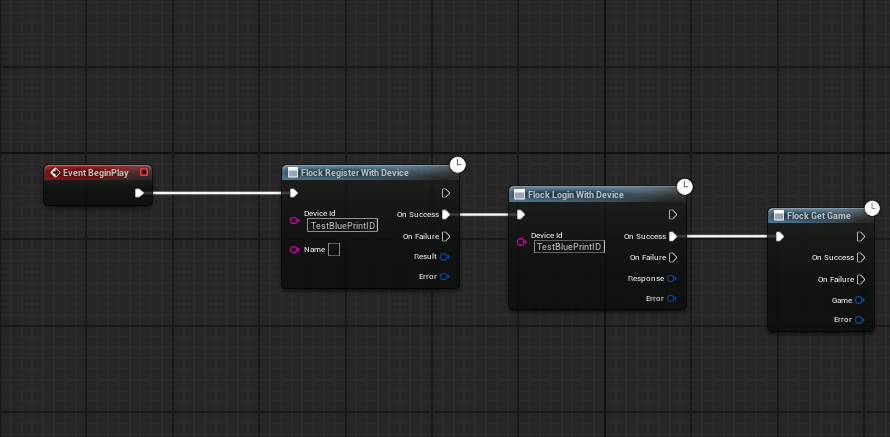
Sign in on BeginPlay, then read the game record — no Target pin on either node.
Initialization
Auto-Initialize On Load is on by default, soUFlockSubsystem is running before BeginPlay. To
defer past a splash screen or EULA, turn it off and call InitializeFromSettings() yourself.
Because init reads a baked version ID, it is synchronous and makes no network call — your game starts
the same offline as online.
Authenticate a player
Email, device ID, Google, Apple, Steam, Facebook, and Discord. The SDK exchanges the credential your platform SDK produced for a Flock session, stores the tokens encrypted between launches, restores the session automatically on startup, and refreshes expired access tokens silently.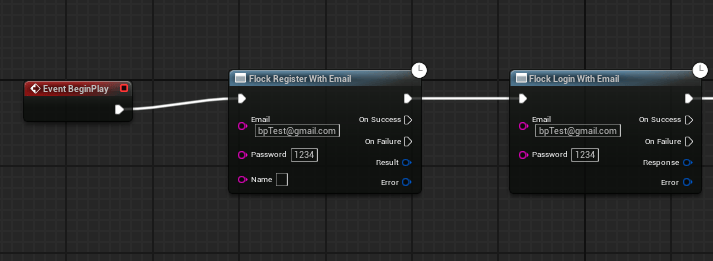
Login and register are separate calls — registering does not sign the player in.
Work with your game data
One menu click turns your backend’s templates, configs, and shops into typed nodes. Tools → Flock → Sync Schemas — no C++, no toolchain, no compile step.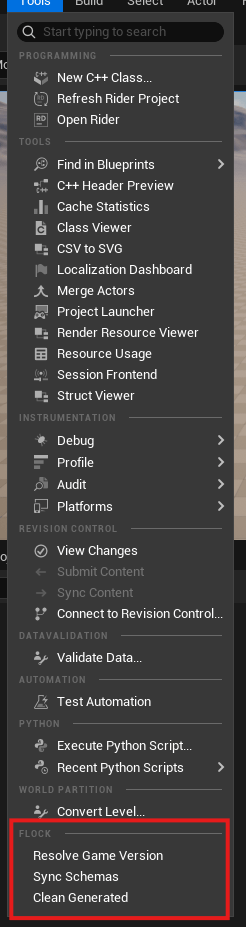
Tools → Flock → Sync Schemas generates typed assets from your own schemas.
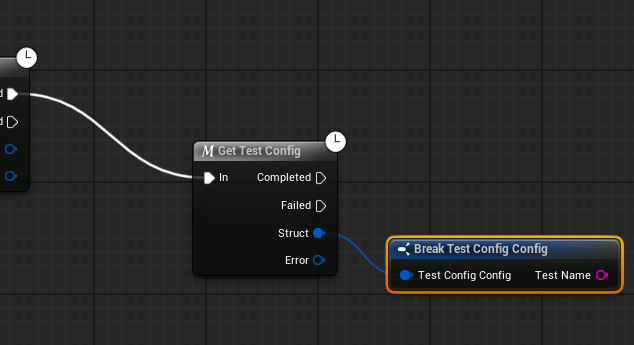
Get Gameplay fetches, converts, and hands back a typed struct — break it for real pins.
Get → the engine’s Set members in struct → Save:
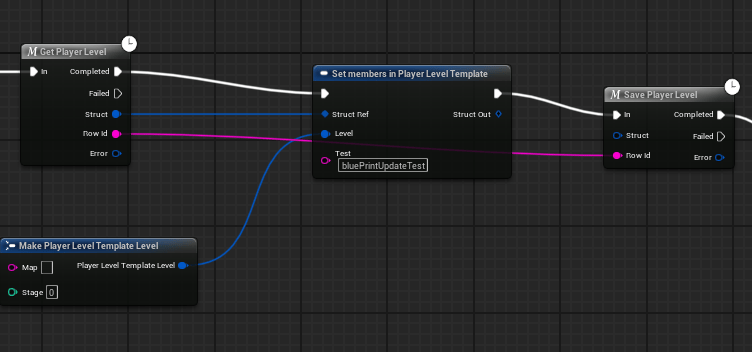
Get hands out the row ID alongside the struct, because Save needs it.
Get fetched.
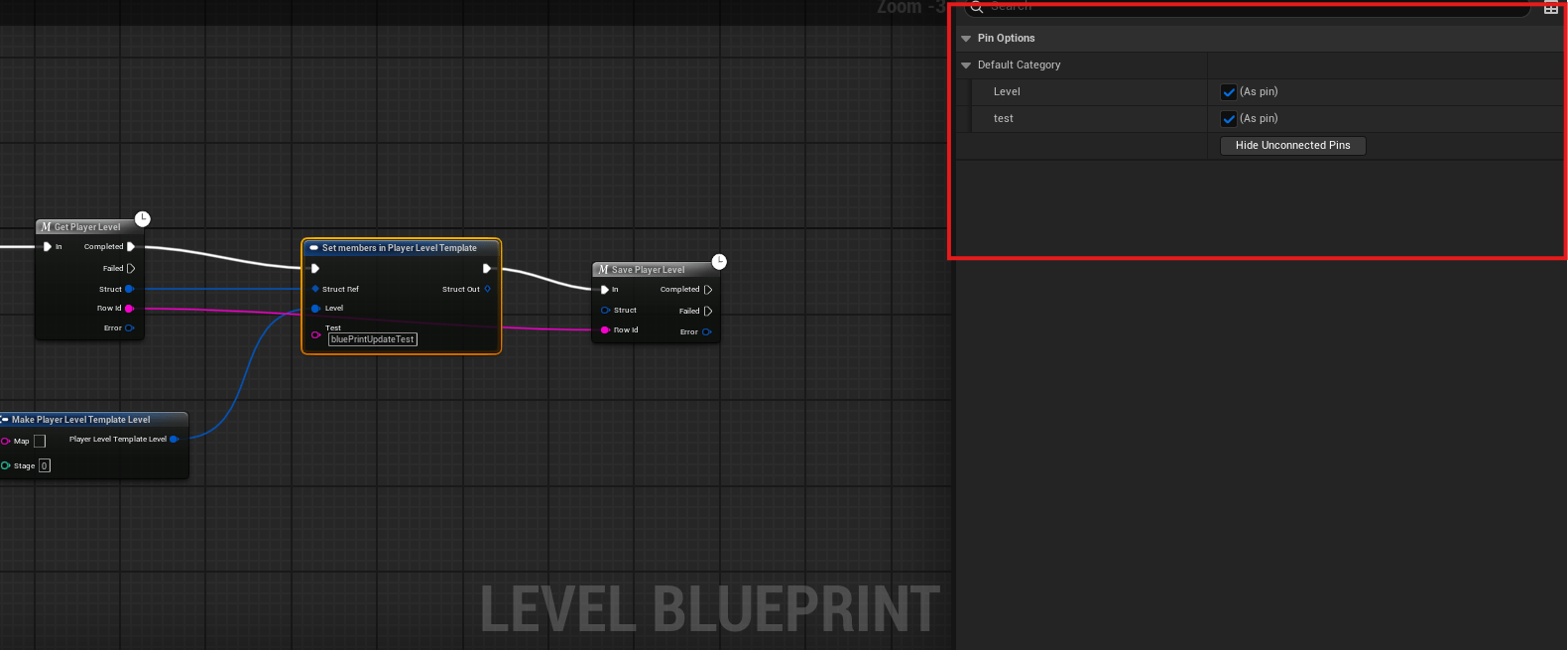
Ticking a member exposes its pin — untouched members are left exactly as they were.
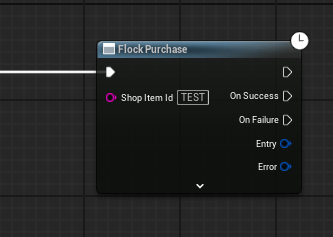
Purchase by picking an item — the ID is baked in and cannot be mistyped.
Prefer C++?
Switch Codegen Target toC++ and a sync emits a generated module instead — a USTRUCT per
template and config, a UENUM per ID set, and a typed call surface.
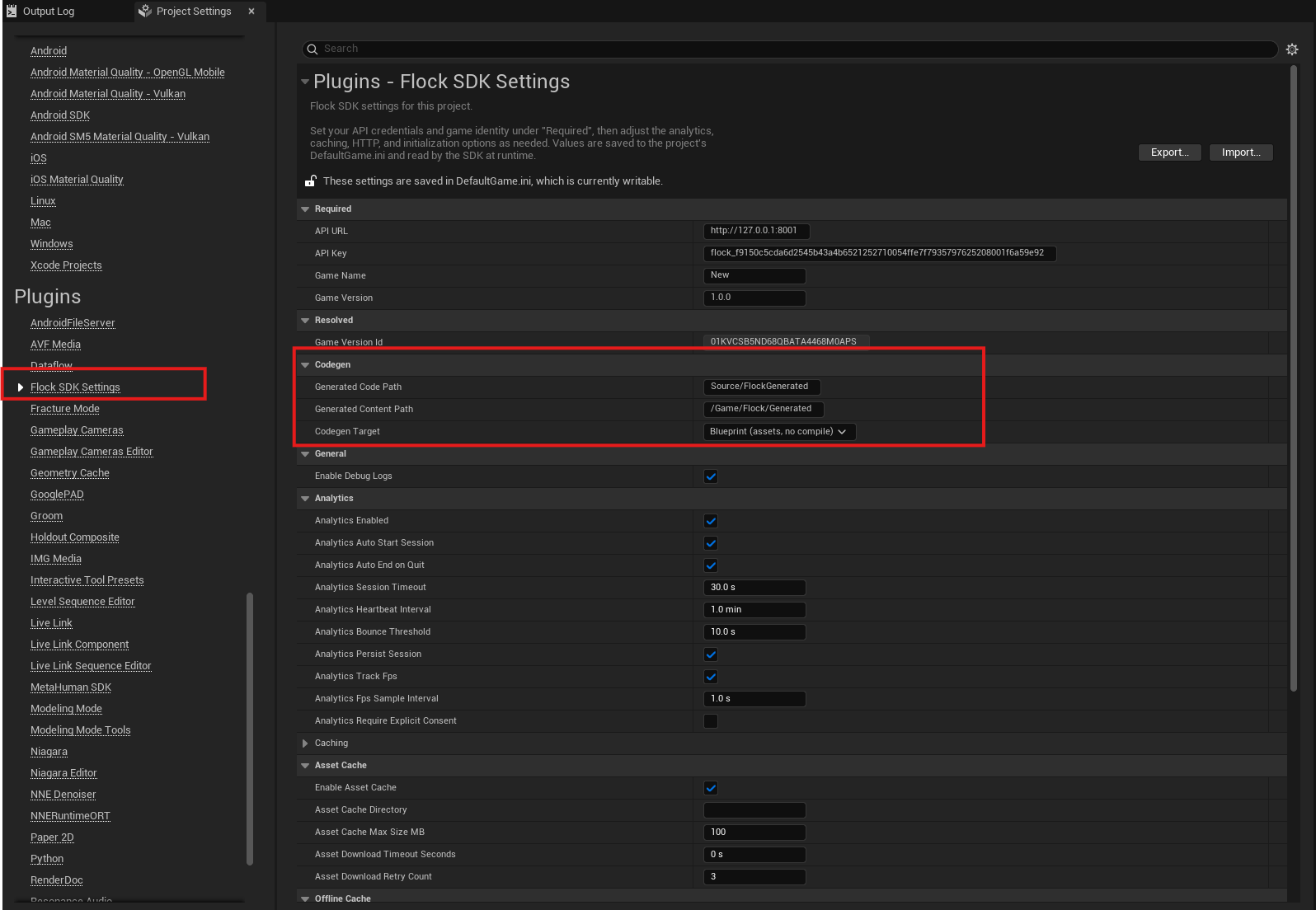
Codegen Target picks what a sync emits. Blueprint is the default.
BlueprintType, so graphs still see
your types after switching.
Explore features
Players & auth
Player data
Shops & inventory
Remote config
Leaderboards
Game notifications
Analytics & events
Playtesting with Protokite
Advanced settings
Project Settings also tunes analytics, HTTP retries, the offline cache, and the codegen paths. The defaults are sensible — change them only when you need to. Turning on Enable Debug Logs traces every network call under theLogFlock category, and each line
names its caller so you can tell a Blueprint graph from C++:
Offline caching
Config, game, shop-catalog, and player-template reads are cached to disk, scoped to your game version, and served when the server is unreachable — the server is always tried first, and there are no TTLs. Player data writes queue offline and replay automatically when the connection returns. Currency grants never do: a grant fails rather than being queued, and is never re-sent after an ambiguous failure, so it cannot double-credit.Error handling
Every call answers with aTFlockResult<T> rather than throwing — Unreal builds with exceptions off.
Check bSuccess, then read Value or Error.
Error, and
UFlockErrorLibrary turns it into display text or a coded-error check without matching strings.