From zero to an authenticated player in five steps with the Flock SDK.
This guide takes you from a fresh game to your first signed-in player using the Flock SDK.
1
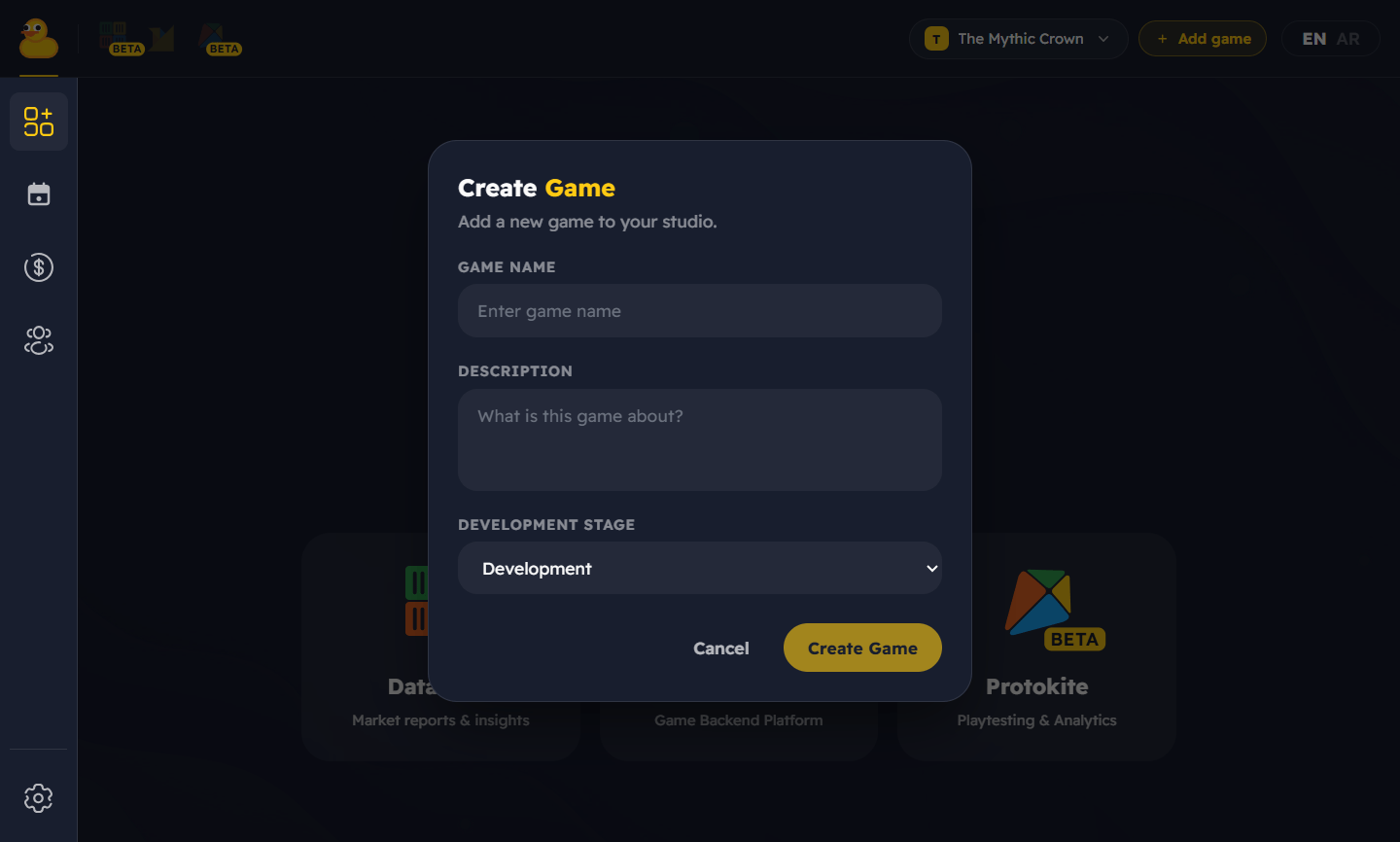
Create a studio and game
Sign in to the Qwacks dashboard, create a studio, then create a
game inside it. A game is the container for your players, economy, and config.
Create a studio and a game in the Qwacks dashboard.
2
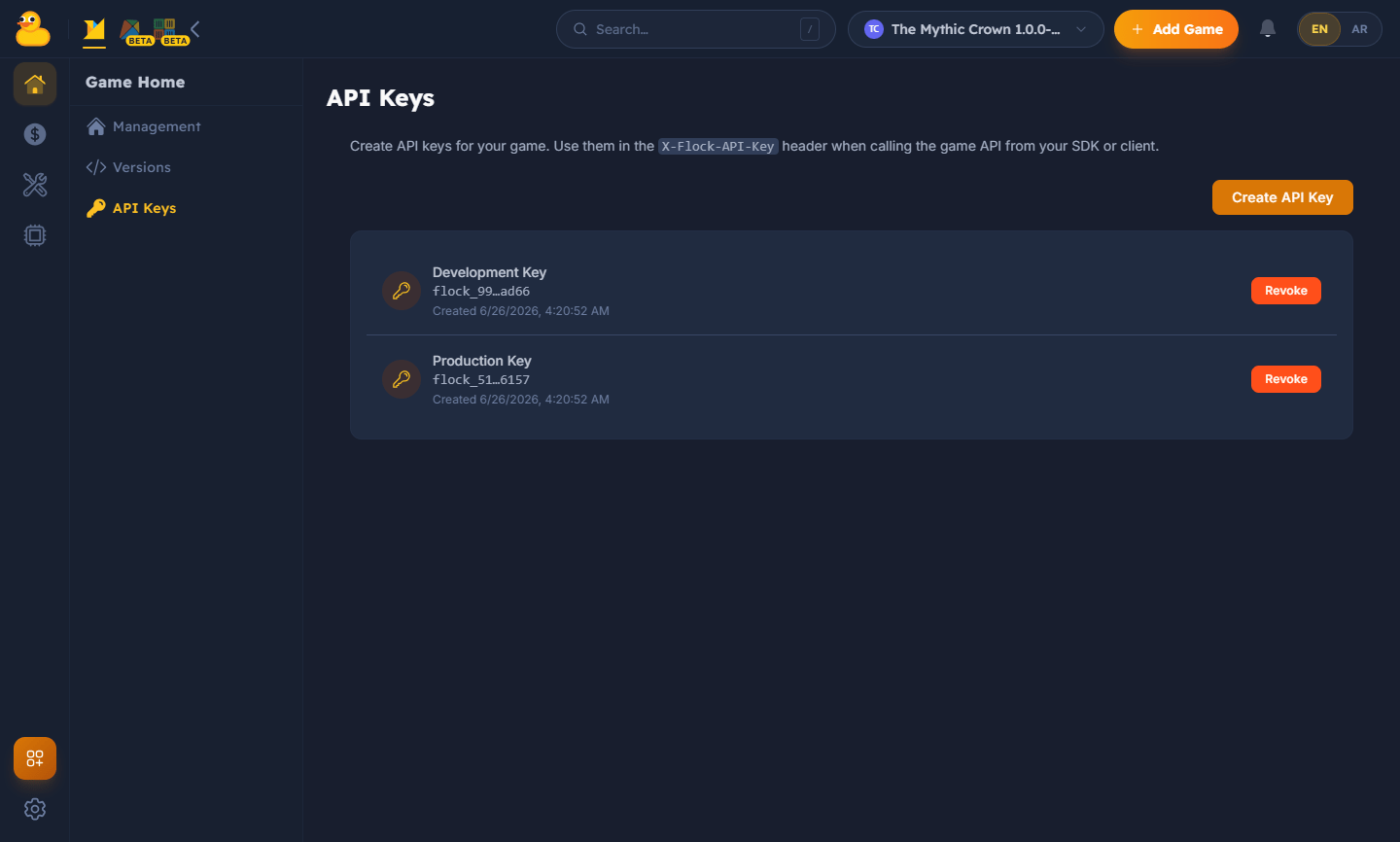
Get your credentials
Open your game in the dashboard and copy its API Key, Game ID, and Game Version.
You’ll plug these into the SDK so it can connect to your game.
Copy your game's credentials from the dashboard.
Treat your API Key like a password. Use a key scoped to the right environment, keep dev and
production separate, and rotate it on the dashboard if it leaks.
3
Install and configure the SDK
Add the SDK for your engine — Unity or Unreal — then open its
settings (Flock → Settings in Unity, Project Settings → Plugins → Flock SDK in Unreal)
and paste in your credentials. The window prepares the two things the SDK needs before it can start:
Resolve Game Version — looks up your version’s ID and bakes it into the config. Runtime init
uses that ID directly and never calls the server, so it must resolve before you play or build.
The window does this automatically as you fill in your credentials.
Automatic (default): with Auto-Initialize On Load on, the SDK initializes itself before
your first scene or level — nothing to call. Reach it through FlockClient.Instance in Unity, or
UFlockSubsystem::Get(this) in Unreal.
Manual: turn it off and initialize it yourself — handy to wait for a splash screen or EULA.
Unity calls FlockClient.Create(config.ToInitConfig()) (or uses the FlockBootstrap component);
Unreal calls InitializeFromSettings().
Full details on the init styles are on the Unity and Unreal SDK pages.
4
Sign in a player
Sign the player in — the SDK manages the session from there.
await FlockClient.Instance.Authentication.LoginWithEmailAsync("[email protected]", "hunter2");Debug.Log($"Signed in as {FlockClient.Instance.CurrentPlayerId}");
UFlockSubsystem* Sdk = UFlockSubsystem::Get(this);Sdk->GetAuthProvider()->LoginWithEmail(TEXT("[email protected]"), TEXT("hunter2"), [](TFlockResult<FFlockPlayerLoginResponse> Result) { if (Result.bSuccess) { UE_LOG(LogTemp, Log, TEXT("Signed in as %s"), *Result.Value.PlayerId); } });
In Blueprint this is one Flock Login With Email node with success and failure pins.
Signing in does not create an account — registering is a separate call in both SDKs. Failures
surface differently: Unity throws, while Unreal returns a TFlockResult you check, because
Unreal builds with exceptions off.
5
Use a feature
Once a player is signed in, reach any feature through the SDK:
var game = await FlockClient.Instance.Game.GetGameAsync();Debug.Log($"Playing {game.Name}");

 Qwacks
 Flock
Flock Protokite
 Data Duck